OpenAI Codex CLI Tutorial - A Hands-On Guide
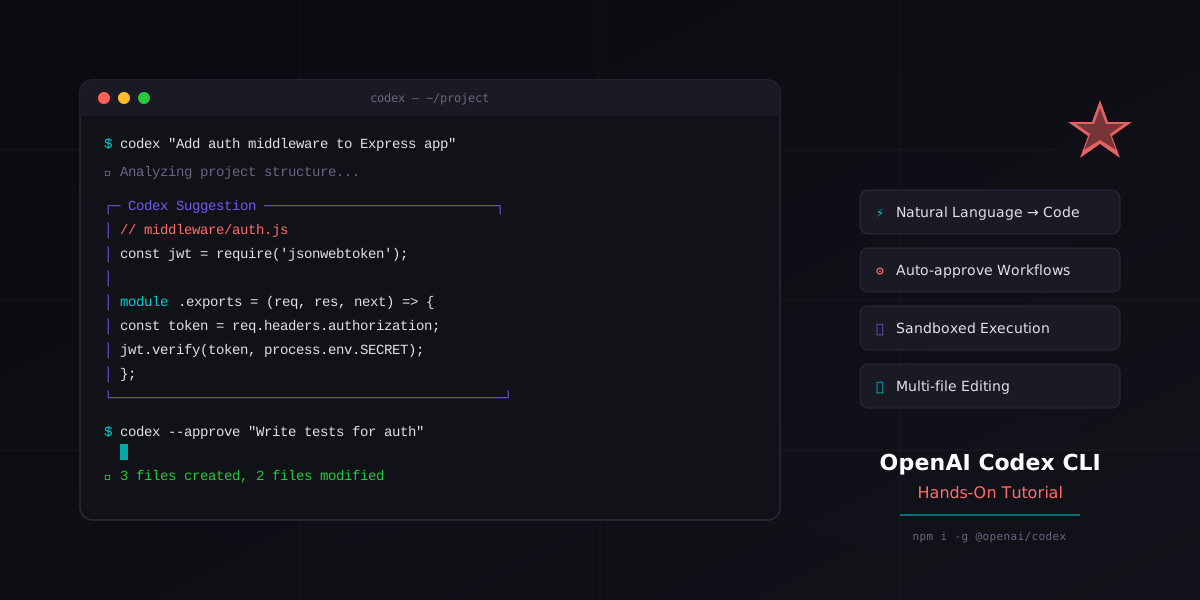
OpenAI Codex CLI is an open-source, terminal-native coding agent that turns natural language into real code changes. Unlike browser-based AI tools, it runs directly in your terminal, reads your entire codebase, executes commands in a sandboxed environment, and applies patches across multiple files. It is the fastest way to go from a plain English description to a working pull request.
This tutorial is a complete, hands-on walkthrough. You will install Codex CLI, configure it with AGENTS.md, understand all three approval modes, write prompts that produce reliable results, leverage the kernel-level sandbox, handle multi-file edits, run parallel tasks with git worktrees, and wire it into your CI/CD pipeline. Every section includes terminal commands you can copy and run.
If you want the broader picture of what Codex is and how it fits into the AI coding landscape, read OpenAI Codex - The AI Coding Agent first. This tutorial assumes you already know what Codex is and want to use it effectively.
1. Getting Started
Codex CLI requires Node.js 22 or later. If you are on an older version, upgrade first. The CLI is distributed as a single npm package.
Step 1: Install Codex CLI globally
npm install -g @openai/codexVerify the installation:
codex --versionYou should see a version number like 0.1.x or later. If you get a "command not found" error, make sure your npm global bin directory is in your PATH:
# Check where npm installs global binaries
npm config get prefix

# Add to your shell profile if needed
export PATH="$(npm config get prefix)/bin:$PATH"
Step 2: Set your OpenAI API key
Codex CLI needs an OpenAI API key to communicate with the model. Set it as an environment variable:
# Add to ~/.bashrc, ~/.zshrc, or ~/.profile
export OPENAI_API_KEY="sk-proj-your-key-here"
Reload your shell or run source ~/.bashrc. You can verify the key is set:
echo $OPENAI_API_KEY | head -c 10
# Should print: sk-proj-yoStep 3: Run your first command
Navigate to any git repository and run Codex with a simple prompt:
cd ~/projects/my-app
codex "explain the project structure"
Codex reads your files, analyzes the codebase, and prints a structured explanation. No files are modified because the default mode (suggest) requires your approval for every change.
Try something that modifies code:
codex "add a health check endpoint to the Express server at GET /healthz"Codex will show you the proposed changes as a diff. You can approve, reject, or ask it to revise. This is the suggest workflow - you stay in control of every edit.
Step 4: Understand the interactive session
When you run codex without a prompt, it starts an interactive REPL:
codexInside the session you can type multiple prompts, and Codex maintains context across them. This is useful for iterative work:
You: add input validation to the signup form
Codex: [shows diff for validation logic]
You: also add unit tests for the validation
Codex: [shows diff for test file, referencing the validation it just wrote]
Press Ctrl+C to exit the session. All changes are applied to your working directory (after approval), so you can review them with git diff before committing.
codex-mini model, which is optimized for fast code tasks. You can switch to a more capable model with the --model flag: codex --model o4-mini "your prompt". For complex architectural changes, o4-mini or o3 produce better results at higher cost and latency.
2. AGENTS.md Configuration
AGENTS.md is the single most important file for getting consistent results from Codex CLI. It is a Markdown file that tells Codex how your project works, what conventions to follow, and what commands to run. Codex reads it automatically when it finds one in your repository.
How the hierarchy works
Codex searches for AGENTS.md files starting from the repository root and walking down into subdirectories. Rules are additive - a file in src/api/AGENTS.md inherits everything from the root AGENTS.md and adds its own rules on top. This lets you set global conventions at the root and override them for specific parts of the codebase.
my-project/
  AGENTS.md              # Global rules for the whole repo
  src/
    api/
      AGENTS.md          # Additional rules for the API layer
    frontend/
      AGENTS.md          # Additional rules for the React app
  tests/
    AGENTS.md            # Rules specific to test files
What to include
A good AGENTS.md covers five areas:
- Tech stack and versions - languages, frameworks, runtime versions
- Project structure - where things live, naming conventions
- Code style - formatting rules, import ordering, naming patterns
- Build and test commands - how to compile, lint, and run tests
- Constraints - things Codex should never do (delete migrations, modify generated files, etc.)
Example: Full-stack TypeScript project
# AGENTS.md

## Tech Stack
- Node.js 22, TypeScript 5.5, strict mode
- Backend: Express 5 with Zod validation
- Frontend: React 19 with TanStack Query
- Database: PostgreSQL 16 with Drizzle ORM
- Testing: Vitest for unit tests, Playwright for E2E

## Project Structure
- `src/api/` - Express routes and middleware
- `src/api/routes/` - one file per resource (users.ts, orders.ts)
- `src/db/` - Drizzle schema and migrations
- `src/web/` - React components and pages
- `src/web/components/` - reusable UI components
- `src/web/pages/` - route-level page components
- `src/shared/` - types and utilities shared between API and web

## Code Style
- Use named exports, never default exports
- Prefer `const` arrow functions for components
- All API responses use the `ApiResponse<T>` wrapper type
- Error handling: throw `AppError` instances, never raw strings
- Imports: Node builtins first, then external packages, then internal

## Commands
- Build: `npm run build`
- Lint: `npm run lint`
- Test all: `npm test`
- Test single file: `npx vitest run path/to/file.test.ts`
- Database migrate: `npm run db:migrate`

## Constraints
- NEVER modify files in `src/db/migrations/` - migrations are immutable
- NEVER delete or rename existing API routes without explicit instruction
- NEVER install new dependencies without asking first
- Always run `npm run lint` after making changes
- Always add or update tests when modifying business logic
Example: Subdirectory override for the API layer
# src/api/AGENTS.md

## API Conventions
- Every route handler must validate input with Zod before processing
- Use `asyncHandler` wrapper on all async route handlers
- Return 201 for successful POST, 200 for GET/PUT, 204 for DELETE
- Log all errors with `logger.error()` before sending the response
- Rate limiting is handled by middleware - do not add per-route limits
Best practices for AGENTS.md
- Be specific. "Use TypeScript" is too vague. "TypeScript 5.5 with strict mode, no any types, all functions must have explicit return types" gives Codex clear guardrails.
- Include commands. Codex can run your test suite and linter to verify its own work, but only if you tell it how.
- State constraints as rules, not suggestions. "NEVER modify migrations" is better than "try to avoid changing migrations."
- Keep it current. An outdated AGENTS.md is worse than none at all. Update it when your stack or conventions change.
- Test it. After writing your AGENTS.md, ask Codex to make a small change and verify it follows the rules. Iterate on the wording until it does.
3. Approval Modes
Codex CLI has three approval modes that control how much autonomy the agent has. Choosing the right mode for the task is critical - too restrictive and you waste time clicking approve, too permissive and you risk unwanted changes.
Suggest mode (default)
Every file edit and every shell command requires your explicit approval. This is the safest mode and the default when you run codex without flags.
# Explicit (same as default)
codex --approval-mode suggest "refactor the auth middleware to use JWT"
Use suggest mode when:
- You are working on sensitive code (auth, payments, data migrations)
- You want to review every change before it hits disk
- You are learning how Codex works and want to see its decision process
Auto-edit mode
Codex can read and write files freely, but must ask before running any shell command (tests, builds, installs). This is the sweet spot for most development work.
codex --approval-mode auto-edit "add pagination to the /users endpoint"In auto-edit mode, Codex will:
- Read your existing route handler and database queries
- Modify the files directly (no approval needed for writes)
- Pause and ask before running
npm testto verify the changes - Show you the test results and ask if you want to continue
Use auto-edit mode when:
- You trust Codex to write code but want to control what gets executed
- You are making feature additions or refactors in well-tested codebases
- You want faster iteration without approving every file write
Full-auto mode
Codex reads, writes, and executes commands without any approval. It operates completely autonomously within the sandbox.
codex --approval-mode full-auto "fix all ESLint errors and run the test suite"In full-auto mode, Codex will:
- Run
npx eslint . --fixto auto-fix what it can - Manually fix remaining lint errors by editing source files
- Run the test suite to verify nothing broke
- If tests fail, read the error output and fix the issues
- Repeat until all tests pass or it determines it cannot fix the problem
Use full-auto mode when:
- Running in CI/CD pipelines where no human is present
- Performing bulk operations (fix all lint errors, update all imports)
- Running tasks where you will review the git diff afterward anyway
Comparison at a glance
| Capability | Suggest | Auto-edit | Full-auto |
|---|---|---|---|
| Read files | Yes | Yes | Yes |
| Write/edit files | Requires approval | Automatic | Automatic |
| Run shell commands | Requires approval | Requires approval | Automatic |
| Best for | Sensitive code | Daily development | CI/CD, bulk tasks |
| Human oversight | Maximum | Moderate | Post-hoc review |
4. Writing Effective Prompts
The quality of Codex CLI output depends heavily on how you write your prompts. Vague prompts produce vague code. Specific, structured prompts produce code that matches your expectations on the first try.
The anatomy of a good prompt
Every effective Codex prompt has three parts:
- What - the specific change you want
- Where - which files, functions, or modules to touch
- How - constraints, patterns, or examples to follow
Template: Bug fix
Fix the bug where [describe the symptom].
The issue is in [file or module].
Root cause: [your hypothesis, if you have one].
The fix should [describe expected behavior].
Run the existing tests after fixing to verify nothing else broke.
Example:
codex "Fix the bug where users with special characters in their email
cannot log in. The issue is in src/api/auth.ts in the validateEmail
function. The regex is rejecting valid emails with + signs.
The fix should accept all RFC 5322 compliant email addresses.
Run npm test after fixing to verify nothing else broke."
Template: New feature
Add [feature description] to [module/component].
It should [list specific behaviors].
Follow the existing pattern in [reference file] for structure.
Add tests covering [list edge cases].
Update the API docs if applicable.
Example:
codex "Add a rate limiter middleware to the Express API.
It should limit each IP to 100 requests per 15-minute window.
Return 429 with a Retry-After header when the limit is exceeded.
Follow the existing middleware pattern in src/api/middleware/cors.ts.
Add tests covering: normal requests, rate-limited requests, and
window reset behavior. Use the existing Vitest setup."
Template: Writing tests
Write tests for [file or function].
Cover: [list specific scenarios].
Use [test framework] with the existing test setup.
Mock [external dependencies] using [mocking approach].
Each test should have a descriptive name explaining the scenario.
Example:
codex "Write tests for src/services/billing.ts.
Cover: successful charge, insufficient funds, expired card,
duplicate charge prevention, and refund processing.
Use Vitest with the existing setup in tests/setup.ts.
Mock the Stripe SDK using vi.mock.
Each test should have a descriptive name explaining the scenario."
Template: Refactoring
Refactor [target] to [new pattern/approach].
Currently it [describe current state].
After refactoring it should [describe desired state].
Do not change any external behavior or API contracts.
Run the full test suite after refactoring to verify.
Example:
codex "Refactor src/services/userService.ts to use dependency injection.
Currently it imports the database client directly at the top of the file.
After refactoring, the service should accept a database client through
its constructor. Create an interface for the database client.
Do not change any external behavior or API contracts.
Update existing tests to pass a mock database client.
Run npm test after refactoring to verify."
Prompt tips that make a real difference
- Name specific files. "Fix the auth bug" forces Codex to search. "Fix the auth bug in src/api/auth.ts" lets it start immediately.
- Reference existing patterns. "Follow the pattern in src/routes/users.ts" is more effective than describing the pattern from scratch.
- Ask Codex to verify. Adding "run npm test after" or "run the linter after" makes Codex self-check its work.
- Break large tasks into steps. Instead of "build a complete CRUD API for products," break it into: schema, routes, validation, tests. Each prompt builds on the previous one.
- State what not to do. "Do not modify the database migration files" prevents common mistakes.
5. The Sandbox Environment
Codex CLI does not just run commands in your regular shell. Every command executes inside a sandboxed environment that restricts what the agent can do at the operating system level. This is what makes full-auto mode safe enough to use in production workflows.
How the sandbox works
On macOS, Codex uses Apple's Seatbelt (sandbox-exec) framework. On Linux, it uses kernel namespaces and seccomp filters similar to how containers work. The sandbox is not a "gentleman's agreement" in application code - it is enforced by the kernel. Even if the model generates a malicious command, the operating system blocks it.
What is available inside the sandbox
- Full read access to the project directory and its contents
- Write access to the project directory (controlled by approval mode)
- Write access to temporary directories (
/tmp,$TMPDIR) - Process execution - Codex can run build tools, test runners, linters, and other CLI tools installed on your system
- Standard development tools - Node.js, Python, Go, Rust, and their package managers work normally
What is blocked
- Network access - outbound connections are blocked by default. Codex cannot
curlan external API, install packages from the internet, or exfiltrate data. You can allowlist specific domains if needed. - File access outside the project - Codex cannot read
~/.ssh,~/.aws, or any directory outside the project root and temp directories - Privilege escalation - no
sudo, nosetuid, no capability changes - System modification - cannot modify system files, install system packages, or change kernel parameters
Configuring network access
Some tasks legitimately need network access - installing npm packages, pulling Docker images, or calling APIs during integration tests. You can allowlist specific domains:
# Allow npm registry access for package installation
codex --full-auto --net-allow "registry.npmjs.org" "install lodash and add it to the project"

# Allow multiple domains
codex --full-auto --net-allow "registry.npmjs.org,api.github.com" "update all dependencies to latest"Verifying the sandbox
You can test that the sandbox is working by asking Codex to do something that should be blocked:
codex --full-auto "run curl https://example.com and show the output"You should see an error indicating the network request was blocked. If the request succeeds, your sandbox configuration needs attention.
Platform differences
| Feature | macOS (Seatbelt) | Linux (Namespaces) |
|---|---|---|
| Enforcement level | Kernel (sandbox-exec) | Kernel (namespaces + seccomp) |
| Network blocking | Full | Full |
| Filesystem isolation | Path-based rules | Mount namespace |
| Process isolation | Limited | PID namespace |
| Docker support | Via Docker Desktop | Native (if available) |
6. Multi-File Editing
Real-world tasks rarely touch a single file. Adding a feature might require changes to the route handler, the service layer, the database schema, the types file, and the tests. Codex CLI handles this natively through its apply_patch mechanism.
How Codex edits files
When Codex needs to modify files, it generates a unified patch that describes all changes across all files in a single atomic operation. Internally, this uses the apply_patch tool, which works like a smarter version of git apply:
--- a/src/api/routes/users.ts
+++ b/src/api/routes/users.ts
@@ -15,6 +15,7 @@
 import { validateRequest } from '../middleware/validate';
+import { paginate } from '../utils/pagination';

 router.get('/', async (req, res) => {
-  const users = await userService.findAll();
+  const { page, pageSize } = req.query;
+  const users = await userService.findAll(paginate(page, pageSize));
   res.json(users);
 });

--- a/src/services/userService.ts
+++ b/src/services/userService.ts
@@ -8,8 +8,9 @@
-export async function findAll() {
-  return db.select().from(users);
+export async function findAll(pagination?: { offset: number; limit: number }) {
+  let query = db.select().from(users);
+  if (pagination) {
+    query = query.offset(pagination.offset).limit(pagination.limit);
+  }
+  return query;
 }
Why apply_patch instead of direct file writes
The patch-based approach has several advantages over writing entire files:
- Precision - only the changed lines are specified, reducing the chance of accidentally overwriting unrelated code
- Context awareness - the surrounding lines in the patch act as anchors, so the patch applies correctly even if line numbers have shifted
- Reviewability - you see exactly what changed, not the entire file
- Atomicity - all file changes in a single patch either apply together or not at all
Handling cross-file dependencies
Codex understands import graphs and type dependencies. When you ask it to rename a function, it will:
- Find the function definition
- Find all files that import or reference it
- Update the definition and every reference in a single patch
- Update any related tests
codex "rename the function getUserById to findUserById across the entire codebase"This produces a patch touching every file that references the function. In suggest mode, you review the complete diff before it is applied.
When multi-file edits go wrong
Large patches occasionally fail to apply cleanly, usually because:
- The context lines in the patch do not match the actual file (someone edited the file between Codex reading it and applying the patch)
- The patch tries to modify a file that has been deleted or moved
- Conflicting changes in the same region of a file
When a patch fails, Codex reports the failure and can retry with a fresh read of the affected files. In auto-edit or full-auto mode, this retry happens automatically.
7. Parallel Tasks with Git Worktrees
One of the most powerful Codex CLI patterns is running multiple instances in parallel, each working on a separate task in its own git worktree. This lets you farm out three or four tasks simultaneously and merge the results.
What are git worktrees?
A git worktree is a linked working directory that shares the same .git repository but has its own checked-out branch and working files. Unlike cloning the repo multiple times, worktrees share the object database, so they are fast to create and use minimal disk space.
Step-by-step: Parallel Codex tasks
Step 1: Create worktrees for each task
# From your main project directory
git worktree add ../my-app-fix-auth fix-auth-bug
git worktree add ../my-app-add-pagination add-pagination
git worktree add ../my-app-add-tests add-test-coverage
This creates three directories, each on its own branch, all sharing the same git history.
Step 2: Launch Codex in each worktree
Open three terminal tabs (or use tmux/screen) and run Codex in each:
# Terminal 1
cd ../my-app-fix-auth
codex --approval-mode full-auto "Fix the JWT validation bug where
expired tokens are accepted. The issue is in src/auth/jwt.ts.
Run npm test after fixing."

# Terminal 2
cd ../my-app-add-pagination
codex --approval-mode full-auto "Add cursor-based pagination to all
list endpoints in src/api/routes/. Follow the pattern in AGENTS.md.
Add tests for pagination edge cases. Run npm test after."

# Terminal 3
cd ../my-app-add-tests
codex --approval-mode full-auto "Add unit tests for all functions in
src/services/ that currently have no test coverage. Use Vitest.
Aim for 80% branch coverage. Run npm test after."
Step 3: Review and merge results
Once all three Codex instances finish, review each branch:
# Review each branch's changes
cd ../my-app-fix-auth && git log --oneline -5 && git diff main
cd ../my-app-add-pagination && git log --oneline -5 && git diff main
cd ../my-app-add-tests && git log --oneline -5 && git diff main

# If everything looks good, merge from your main worktree
cd ~/projects/my-app
git merge fix-auth-bug
git merge add-pagination
git merge add-test-coverage
Step 4: Clean up worktrees
# Remove the worktrees when done
git worktree remove ../my-app-fix-auth
git worktree remove ../my-app-add-pagination
git worktree remove ../my-app-add-tests

# Optionally delete the branches if they have been merged
git branch -d fix-auth-bug add-pagination add-test-coverage
Automating the pattern with a script
If you use this pattern frequently, wrap it in a shell script:
#!/bin/bash
# parallel-codex.sh - Run multiple Codex tasks in parallel

REPO_DIR=$(pwd)
TASKS=("$@")

for i in "${!TASKS[@]}"; do
    BRANCH="codex-task-$i"
    WORKTREE="../$(basename $REPO_DIR)-task-$i"

    git branch "$BRANCH" HEAD
    git worktree add "$WORKTREE" "$BRANCH"

    (
        cd "$WORKTREE"
        codex --approval-mode full-auto "${TASKS[$i]}"
        echo "Task $i complete in $WORKTREE"
    ) &
done

wait
echo "All tasks complete. Review branches and merge."
Usage:
./parallel-codex.sh \
  "fix the auth bug in src/auth/jwt.ts" \
  "add pagination to all list endpoints" \
"add missing unit tests for src/services/"codex "resolve all merge conflicts, preferring the changes from the current branch".
8. CI/CD Integration
Codex CLI in full-auto mode is designed for headless environments. No human is present to approve changes, so the agent runs autonomously, makes changes, runs tests, and either succeeds or fails with a clear exit code. This makes it a natural fit for CI/CD pipelines.
Use cases for Codex in CI/CD
- Automated code review fixes - run Codex to fix lint errors, formatting issues, or simple code review comments before a human reviews
- Dependency updates - let Codex update dependencies, run tests, and open a PR if everything passes
- Documentation generation - generate or update API docs, README files, or changelogs from code changes
- Test generation - automatically add tests for new code that lacks coverage
- Migration assistance - apply repetitive migration patterns across many files
GitHub Actions example
Here is a complete workflow that runs Codex to fix lint errors on every pull request:
# .github/workflows/codex-lint-fix.yml
name: Codex Lint Fix

on:
  pull_request:
    types: [opened, synchronize]

permissions:
  contents: write
  pull-requests: write

jobs:
  lint-fix:
    runs-on: ubuntu-latest
    steps:
      - name: Checkout
        uses: actions/checkout@v4
        with:
          ref: ${{ github.head_ref }}
          fetch-depth: 0

      - name: Setup Node.js
        uses: actions/setup-node@v4
        with:
          node-version: '22'

      - name: Install dependencies
        run: npm ci

      - name: Install Codex CLI
        run: npm install -g @openai/codex

      - name: Run Codex lint fix
        env:
          OPENAI_API_KEY: ${{ secrets.OPENAI_API_KEY }}
        run: |
          codex --approval-mode full-auto \
            --quiet \
            "Fix all ESLint errors and warnings in the codebase. \
             Run npx eslint . after fixing to verify zero errors remain."

      - name: Commit fixes
        run: |
          git config user.name "codex-bot"
          git config user.email "codex-bot@users.noreply.github.com"
          git add -A
          git diff --cached --quiet || git commit -m "fix: auto-fix lint errors via Codex CLI"
          git push
GitHub Actions: Auto-generate tests for new code
# .github/workflows/codex-test-gen.yml
name: Codex Test Generation

on:
  pull_request:
    types: [opened, synchronize]

jobs:
  generate-tests:
    runs-on: ubuntu-latest
    steps:
      - uses: actions/checkout@v4
        with:
          ref: ${{ github.head_ref }}
          fetch-depth: 0

      - uses: actions/setup-node@v4
        with:
          node-version: '22'

      - run: npm ci
      - run: npm install -g @openai/codex

      - name: Find changed files
        id: changed
        run: |
          FILES=$(git diff --name-only origin/main -- '*.ts' '*.tsx' | grep -v '.test.' | tr '\n' ' ')
          echo "files=$FILES" >> $GITHUB_OUTPUT

      - name: Generate tests
        if: steps.changed.outputs.files != ''
        env:
          OPENAI_API_KEY: ${{ secrets.OPENAI_API_KEY }}
        run: |
          codex --approval-mode full-auto \
            "Write unit tests for these changed files: ${{ steps.changed.outputs.files }}. \
             Use Vitest. Follow existing test patterns. Run npm test to verify."

      - name: Commit and push
        run: |
          git config user.name "codex-bot"
          git config user.email "codex-bot@users.noreply.github.com"
          git add -A
          git diff --cached --quiet || git commit -m "test: auto-generate tests via Codex CLI"
          git push
CI/CD best practices
- Always use
--quietflag in CI to reduce log noise - Set a timeout - Codex can get stuck in retry loops. Use your CI platform's job timeout (15-30 minutes is reasonable)
- Pin the Codex CLI version - use
npm install -g @openai/codex@0.1.2instead of latest to avoid surprises - Store the API key as a secret - never hardcode it in the workflow file
- Review the diff - even automated changes should be reviewed. The workflow pushes to the PR branch, so the PR diff shows everything Codex changed
- Use a dedicated bot account - commits from "codex-bot" are easy to identify and revert if needed
codex-mini model is significantly cheaper than o4-mini and sufficient for most CI tasks like lint fixes and test generation.
9. Codex CLI vs Codex App
OpenAI offers two ways to use Codex: the CLI (open-source, runs locally) and the Codex app (cloud-based, runs in ChatGPT). They share the same underlying models but differ significantly in how they operate.
| Feature | Codex CLI | Codex App (ChatGPT) |
|---|---|---|
| Runs where | Your local machine | OpenAI cloud sandbox |
| Source code | Open-source (Apache 2.0) | Proprietary |
| Codebase access | Direct filesystem read | GitHub repo sync |
| Latency | Lower (local file I/O) | Higher (cloud round-trips) |
| Sandbox | Kernel-level (local) | Cloud microVM |
| Network access | Blocked by default, configurable | Full internet access |
| Parallel tasks | Git worktrees + multiple instances | Multiple cloud tasks natively |
| CI/CD integration | Native (runs in any pipeline) | Via API only |
| Approval modes | Suggest, auto-edit, full-auto | Async review only |
| Model options | codex-mini, o4-mini, o3, any OpenAI model | codex-mini (fixed) |
| Cost | API token usage (pay per use) | Included in ChatGPT Pro ($200/mo) |
| Offline capable | File reading yes, generation no | No |
| Custom instructions | AGENTS.md (hierarchical) | AGENTS.md (flat) |
| Best for | Local dev, CI/CD, power users | Quick tasks, non-local repos |
When to use which
Use Codex CLI when:
- You want the fastest possible iteration loop (no cloud round-trips)
- You need to integrate with CI/CD pipelines
- You want full control over the sandbox and network access
- You are working with private repos that cannot be synced to GitHub
- You want to run parallel tasks with git worktrees
- You prefer open-source tools you can inspect and modify
Use the Codex App when:
- You want a visual interface with conversation history
- You need internet access during code generation (installing packages, calling APIs)
- You are already paying for ChatGPT Pro and want to use your existing subscription
- You want to hand off a task and come back later to review the result
Many developers use both. CLI for daily local work and CI/CD, the app for longer-running tasks they want to fire and forget. For a deeper dive into the Codex platform as a whole, see OpenAI Codex - The AI Coding Agent.
10. Real Workflow Examples
Theory is useful, but seeing complete workflows from start to finish is what makes a tutorial stick. Here are three real scenarios showing exactly how to use Codex CLI for common development tasks.
Example 1: Fix a bug end-to-end
Scenario: Users report that the search endpoint returns duplicate results when the query contains uppercase letters.
Diagnose
codex "The /api/search endpoint returns duplicate results when the
query contains uppercase letters. Investigate src/api/routes/search.ts
and src/services/searchService.ts. Explain the root cause but do not
fix it yet."
Codex reads the files and explains: the search query is passed to the database without normalizing case, and the database has a case-sensitive index. Results for "React" and "react" are treated as different entries.
Fix
codex --approval-mode auto-edit "Fix the duplicate search results bug.
Normalize the search query to lowercase before passing it to the database
query in src/services/searchService.ts. Also add a LOWER() wrapper to
the SQL WHERE clause for case-insensitive matching. Do not change the
API response format."
Codex edits the service file and shows you the diff. It asks permission to run npm test.
Verify and commit
# Review the changes
git diff

# Run tests manually if you want extra confidence
npm test

# Commit
git add -A
git commit -m "fix: normalize search query for case-insensitive matching"
Example 2: Add comprehensive tests
Scenario: The billing service has zero test coverage and you need to add tests before a major refactor.
Generate tests
codex --approval-mode auto-edit "Write comprehensive unit tests for
src/services/billingService.ts. The file has these public functions:
createCharge, processRefund, getInvoice, listTransactions.

Cover these scenarios for each function:
- Happy path with valid input
- Invalid input (missing fields, wrong types)
- External service errors (Stripe API failures)
- Edge cases (zero amount, negative amount, duplicate charge IDs)

Use Vitest. Mock the Stripe SDK with vi.mock.
Follow the test patterns in tests/services/userService.test.ts.
Run npm test after writing to verify all tests pass."
Review the generated tests
# See what Codex created
cat tests/services/billingService.test.ts

# Check coverage
npx vitest run --coverage src/services/billingService.ts
If coverage is below your target, follow up:
codex "The billing service tests are at 72% branch coverage.
Add tests to cover the uncovered branches. Focus on error handling
paths and the retry logic in createCharge."
Example 3: Refactor to dependency injection
Scenario: The user service directly imports the database client, making it impossible to unit test without a real database.
Plan the refactor
codex "Analyze src/services/userService.ts and list all direct
dependencies that should be injected. Show me the plan but do not
make changes yet."
Codex identifies: db (database client), emailService (sends welcome emails), and logger (Winston instance).
Execute the refactor
codex --approval-mode auto-edit "Refactor src/services/userService.ts
to use dependency injection:

1. Create an interface UserServiceDeps with db, emailService, and logger
2. Change the module from exporting bare functions to exporting a
   createUserService(deps: UserServiceDeps) factory function
3. Update all call sites in src/api/routes/ to use the factory
4. Create a src/services/container.ts that wires up the real dependencies
5. Update existing tests to pass mock dependencies
6. Do not change any external API behavior

Run npm test after each major step to catch regressions early."
Verify the refactor
# Full test suite
npm test

# Type check
npx tsc --noEmit

# Lint
npm run lint

# Review the complete diff
git diff
If everything passes, commit the refactor:
git add -A
git commit -m "refactor: convert userService to dependency injection"
11. Common Pitfalls
After working with Codex CLI across dozens of projects, these are the ten most common mistakes developers make and how to avoid them.
1. No AGENTS.md file
Problem: Without an AGENTS.md, Codex guesses your conventions. It might use CommonJS when you use ESM, add default exports when you use named exports, or pick the wrong test framework.
Fix: Always create an AGENTS.md before your first Codex session. Even a minimal one with your tech stack and test command makes a huge difference.
2. Prompts that are too vague
Problem: "Make the code better" or "fix the bugs" gives Codex no direction. It will make changes, but they probably will not match what you had in mind.
Fix: Be specific about what, where, and how. Name files, describe expected behavior, and reference existing patterns.
3. Using full-auto for sensitive code
Problem: Running full-auto on authentication, payment processing, or data migration code means changes are applied without review.
Fix: Use suggest mode for sensitive code. The extra approval time is worth the safety. Reserve full-auto for low-risk tasks like lint fixes and test generation.
4. Not running tests after changes
Problem: Codex makes changes that look correct in the diff but break something downstream. Without running tests, you do not catch this until later.
Fix: Always include "run npm test after" (or your equivalent) in your prompts. In auto-edit mode, approve the test run. In full-auto mode, Codex runs tests automatically if you ask.
5. Monolithic prompts
Problem: A single prompt asking Codex to "build a complete user management system with CRUD, auth, roles, email verification, and admin dashboard" overwhelms the context and produces incomplete results.
Fix: Break large tasks into focused prompts. Each prompt should produce a reviewable, testable increment. Use the interactive session to maintain context across prompts.
6. Ignoring the sandbox constraints
Problem: Your prompt asks Codex to install a package (npm install), but network access is blocked. Codex fails silently or produces an error you do not understand.
Fix: If your task needs network access, use --net-allow with the specific domain. Or install dependencies yourself before running Codex.
7. Not reviewing diffs in suggest mode
Problem: Rubber-stamping every approval defeats the purpose of suggest mode. Codex occasionally makes subtle mistakes - wrong variable names, off-by-one errors, or incomplete error handling.
Fix: Actually read the diffs. If you find yourself approving everything without reading, switch to auto-edit mode and review the final git diff instead.
8. Forgetting to commit between tasks
Problem: You run three Codex prompts in a row without committing. The third prompt's changes conflict with the first, and you cannot untangle them.
Fix: Commit after each successful Codex task. Small, focused commits are easier to review, revert, and bisect.
9. Using the wrong model for the task
Problem: Using o3 for a simple lint fix wastes money and time. Using codex-mini for a complex architectural refactor produces shallow results.
Fix: Match the model to the task complexity. codex-mini for simple, well-defined tasks. o4-mini for moderate complexity. o3 for complex reasoning and architecture.
10. Not updating AGENTS.md as the project evolves
Problem: Your AGENTS.md says "use Jest" but you migrated to Vitest three months ago. Codex follows the outdated instructions and generates Jest tests.
Fix: Treat AGENTS.md like documentation - update it when the project changes. Add it to your PR checklist: "Did this change affect AGENTS.md?"
12. Quick Reference Card
Keep this reference handy. It covers every command and flag you will use regularly.
Installation and setup
# Install
npm install -g @openai/codex

# Set API key
export OPENAI_API_KEY="sk-proj-..."

# Verify
codex --version
Basic usage
# One-shot prompt
codex "your prompt here"

# Interactive session
codex

# With a specific model
codex --model o4-mini "your prompt"

# Quiet mode (less output, good for CI)
codex --quiet "your prompt"
Approval modes
# Suggest (default) - approve everything
codex "your prompt"

# Auto-edit - auto-write files, approve commands
codex --approval-mode auto-edit "your prompt"

# Full-auto - no approvals needed
codex --approval-mode full-auto "your prompt"
Network and sandbox
# Allow specific domain
codex --full-auto --net-allow "registry.npmjs.org" "install lodash"

# Allow multiple domains
codex --full-auto --net-allow "registry.npmjs.org,api.github.com" "update deps"
Git worktree parallel pattern
# Create worktree
git worktree add ../project-task-1 task-branch-1

# Run Codex in worktree
cd ../project-task-1 && codex --full-auto "your task"

# Clean up
git worktree remove ../project-task-1
AGENTS.md locations
repo-root/AGENTS.md          # Global rules
repo-root/src/AGENTS.md       # Rules for src/
repo-root/src/api/AGENTS.md   # Rules for src/api/
repo-root/tests/AGENTS.md     # Rules for tests/
Common prompt patterns
# Bug fix
codex "Fix [symptom] in [file]. Root cause: [hypothesis]. Run tests after."

# New feature
codex "Add [feature] to [module]. Follow pattern in [reference file]. Add tests."

# Tests
codex "Write tests for [file]. Cover [scenarios]. Use [framework]. Run tests."

# Refactor
codex "Refactor [target] to [pattern]. Do not change external behavior. Run tests."

# Explain
codex "Explain how [file/function] works. Include the data flow and error paths."
That covers everything you need to be productive with Codex CLI. Start with suggest mode and a solid AGENTS.md, graduate to auto-edit for daily work, and use full-auto for CI/CD and bulk tasks. The key to great results is specific prompts, incremental changes, and always running your test suite.
For the broader Codex ecosystem including the cloud app, pricing, and model details, read OpenAI Codex - The AI Coding Agent. For more on how AI agents fit into the developer toolchain, see Code Repos, AI Agents, IDEs and CLIs.